


Applicability
This guide applies to: Gate Web / App
Preparation before operation: Account registration and identity verification (KYC) completed
Estimated time required: 5 minutes
Objective
This article will walk you through how to use the segmented order feature on Gate Web and App, optimizing trade execution by splitting large orders into multiple smaller ones.
What is Segmented Order
Segmented orders allow you to split a large order into several smaller orders, which are automatically placed according to preset price ranges and quantity distributions. You can set the minimum price, maximum price, order quantity range, and distribution method (average, increasing, or decreasing) to implement more flexible trading strategies.
Key Benefits
- Lower slippage: Splitting large orders into several smaller sub-orders helps avoid sudden price swings and slippage caused by sharp market movements.
- Greater execution control: Adjust order size and timing based on market conditions, taking advantage of short-term volatility while maintaining stability and control.
- More entry points: Enter positions at multiple price levels, covering a wide price range to optimize trade results and better capture market trends.
Use Cases
- Reducing market impact: In markets with low liquidity, placing a large order all at once can trigger significant price fluctuations. By breaking a large order into smaller ones and executing them gradually, you can effectively minimize disruption to market prices.
- Positioning across price ranges: If you expect the market to fluctuate within a specific price range, setting orders at different prices in batches increases flexibility and the likelihood of execution.
- Controlling entry cost: Using segmented orders lets you build a position at multiple price points, averaging your holding cost and avoiding the risk of overpaying at a single price.
- Enhancing trading automation: For traders who can't monitor the market constantly, setting rules for segmented orders enables automatic batch order placement, improving execution efficiency.
Example Usage
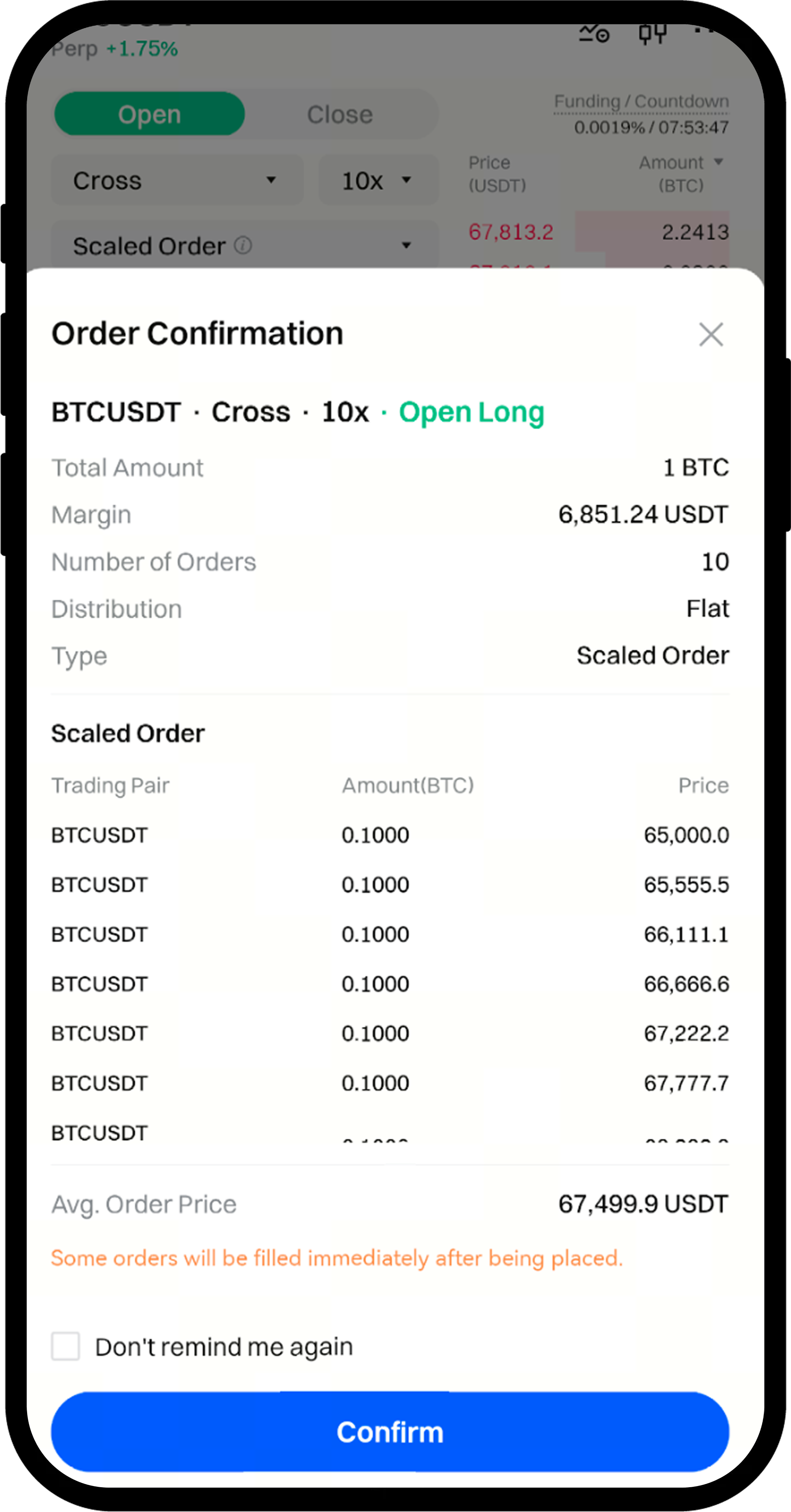
Suppose BTCUSDT is currently trading at 65,000 USDT. User A wants to go long 1 BTC and chooses segmented orders with the following parameters:
- Total order size: 1 BTC
- Number of orders: 10
- Order distribution mode: Average
- Size per sub-order: 0.1 BTC
- Price range: 65,000 – 75,000 USDT
- Price interval: 1,111.1 USDT
- Average entry price: (65000 + 66111.1 +...75000)/10 = 70,000 USDT
After submitting the order, 10 limit orders will be placed in the order book. The first sub-order is for 0.1 BTC at 65,000 USDT, and subsequent orders are placed at incrementally higher prices: 66,111.1 USDT, 67,222.2 USDT, 68,333.3 USDT, etc. Once the market price exceeds 75,000 USDT, all orders are filled, with an average fill price of 70,000 USDT.
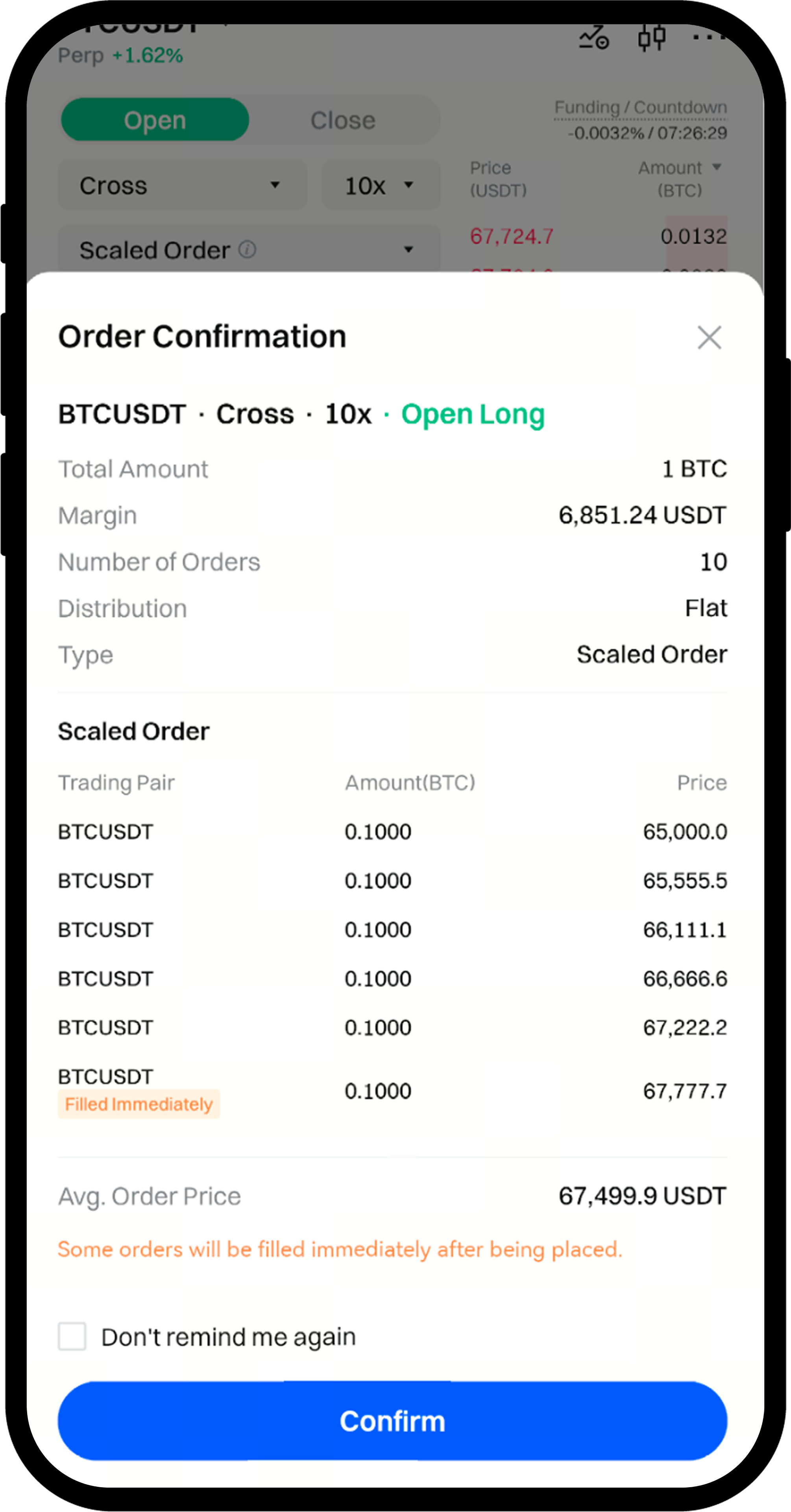
Please note: If the current market price is better than the sub-order price, sub-orders that are immediately filled will be marked as "immediate execution" in the segmented order preview.
Steps (Web Version)
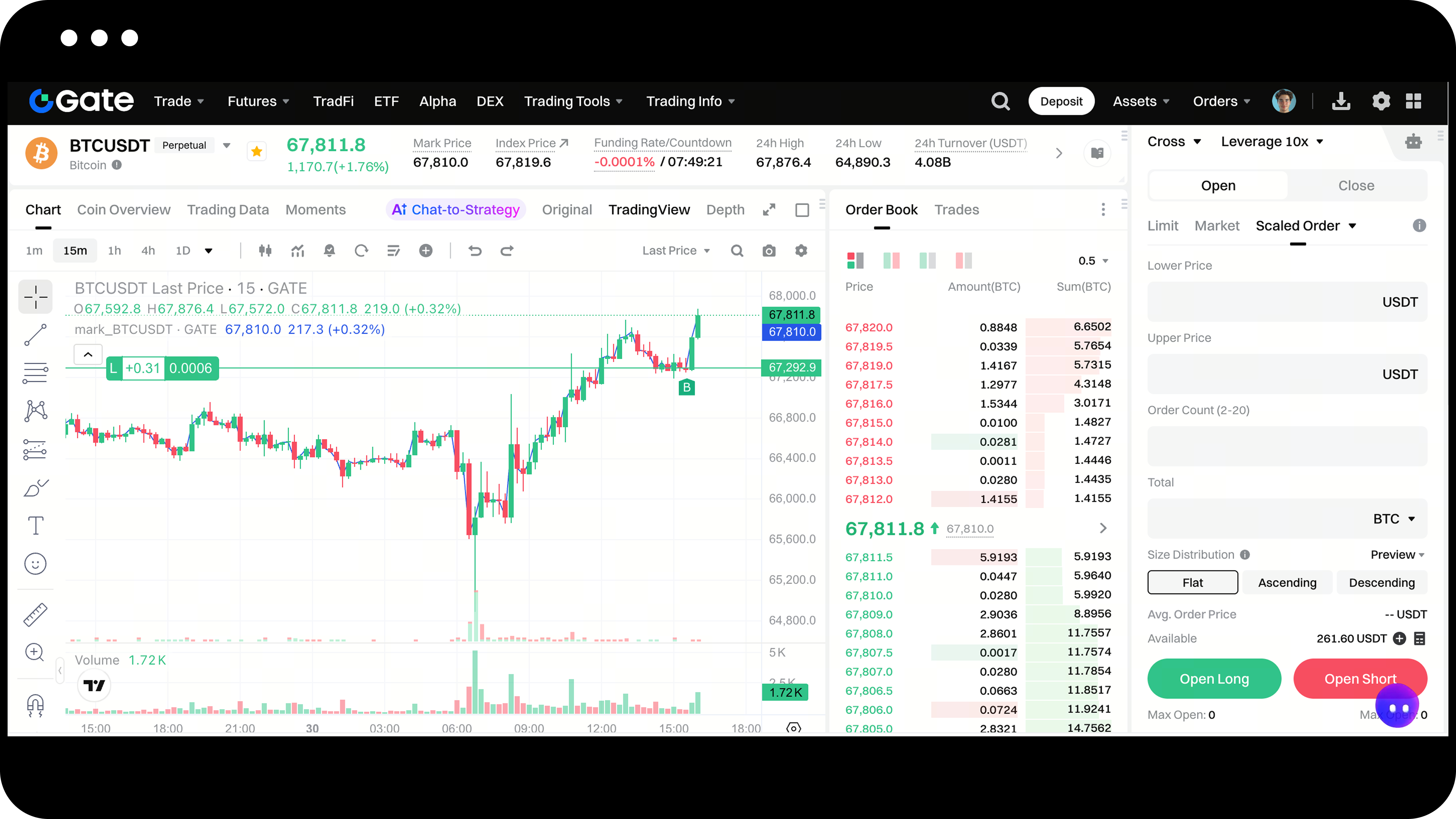
Step 1: Access Segmented Order
On the trading page, select the trading pair you wish to place an order for, then click Segmented Order in the order area on the right.
Step 2: Set Order Parameters
Create your segmented order using the following parameters:
| Parameter Name | Description |
|---|---|
| Position Mode | Consistent with the selected contract's position mode preference. |
| Minimum Price | Lower bound of the price range for segmented sub-orders. |
| Maximum Price | Upper bound of the price range for segmented sub-orders. |
| Number of Orders | Total number of sub-orders split when executing segmented order, range is 2-10. |
| Total Quantity | Enter the total quantity to submit for the order. |
| Quantity Distribution | Distribution method for splitting quantity: average, increasing, or decreasing. Default is average. |
| Average: Distribute total quantity evenly across orders, placing at average price intervals. | |
| Increasing: Distribute quantity incrementally across orders, placing at average price intervals. | |
| Decreasing: Distribute quantity decrementally across orders, placing at average price intervals. | |
| Reduce Only | Applies only to one-way mode for perpetual contract trading. In dual position mode, for closing orders, traders can switch to the "Close" tab to create segmented orders. |
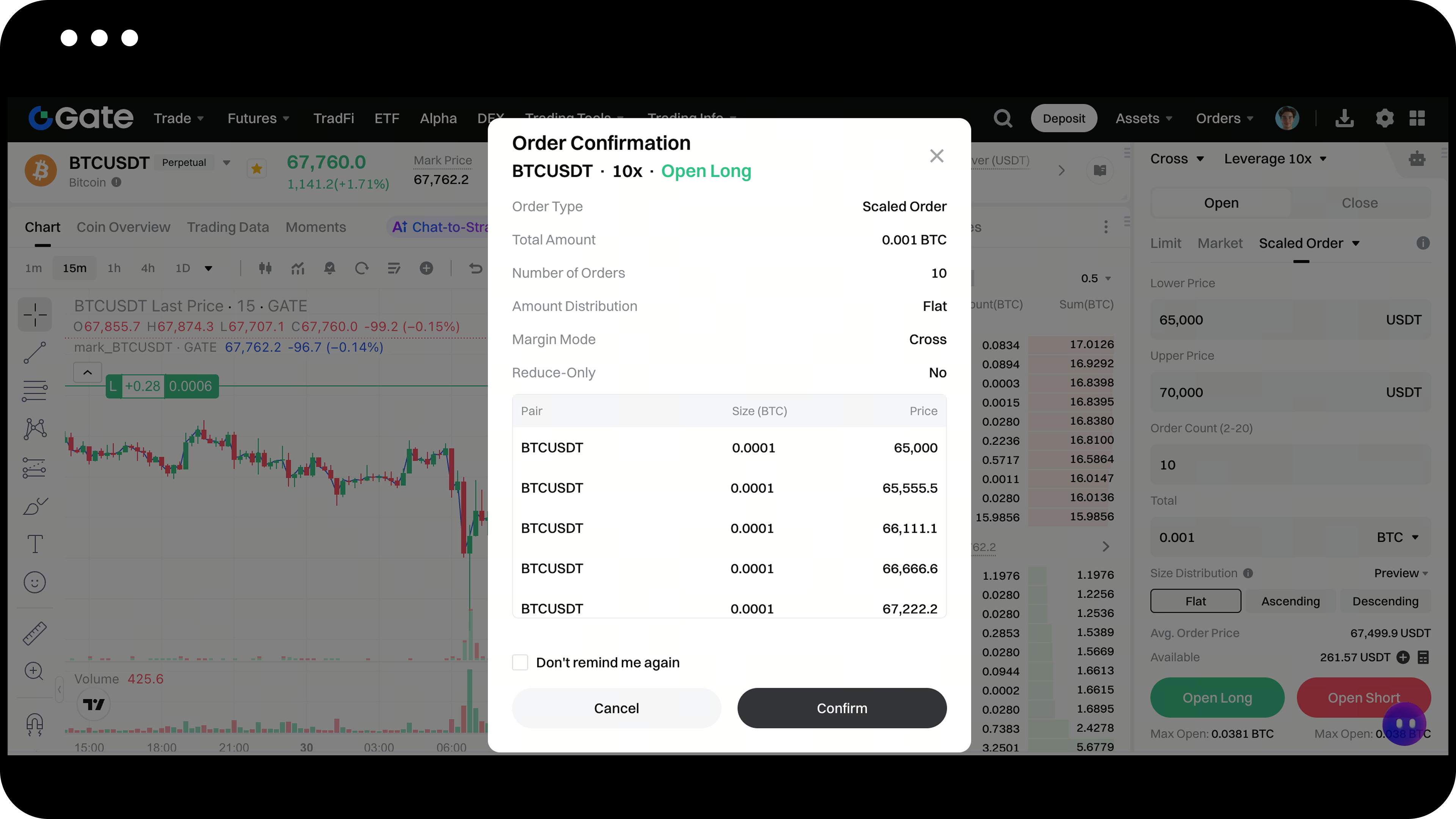
Step 3: Confirm and Submit Order
Double-check all your order details, then click Confirm to submit the order.
Step 4: View and Manage Orders
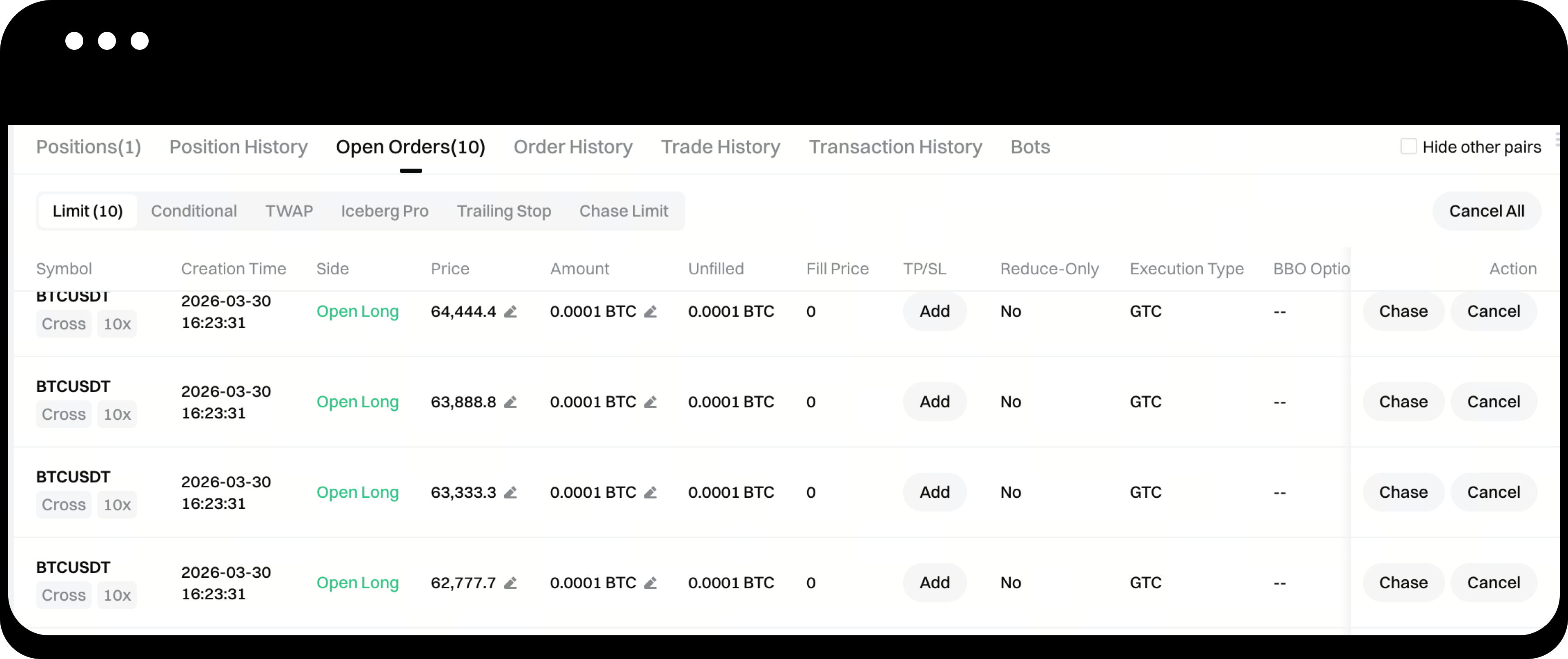
Once your order is placed, you can view your active orders under Current Orders > Limit Orders at the bottom of the trading page.
Segmented sub-orders support order modification and cancellation. You can manage them in the order details under Current Orders - Limit Orders.
Step 5: Check Order History
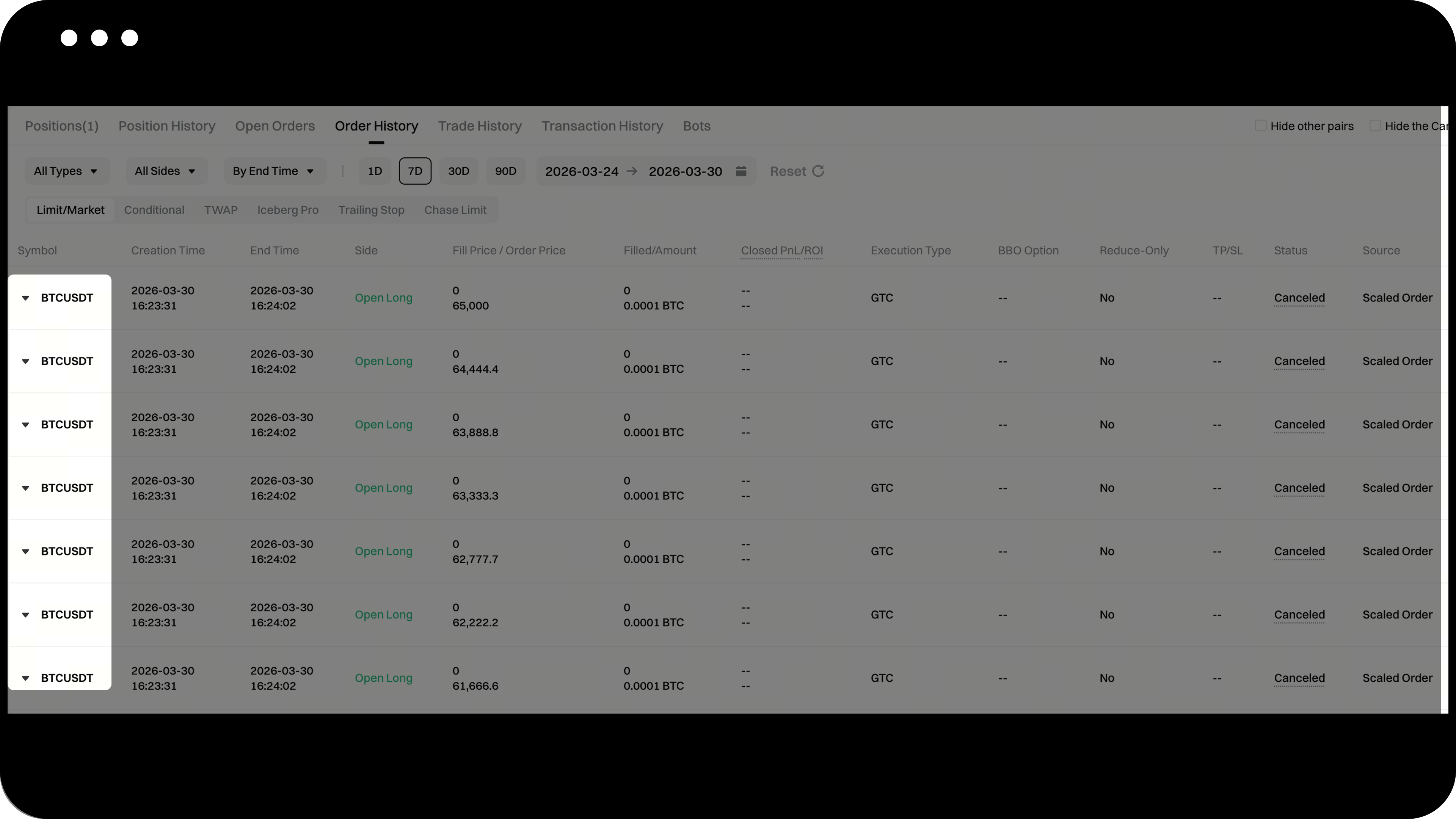
Completed or cancelled segmented sub-orders will appear in Order History.
You can view segmented order details in the Order History - Limit | Market Orders list.
Steps (App Version)
Step 1: Access Segmented Order
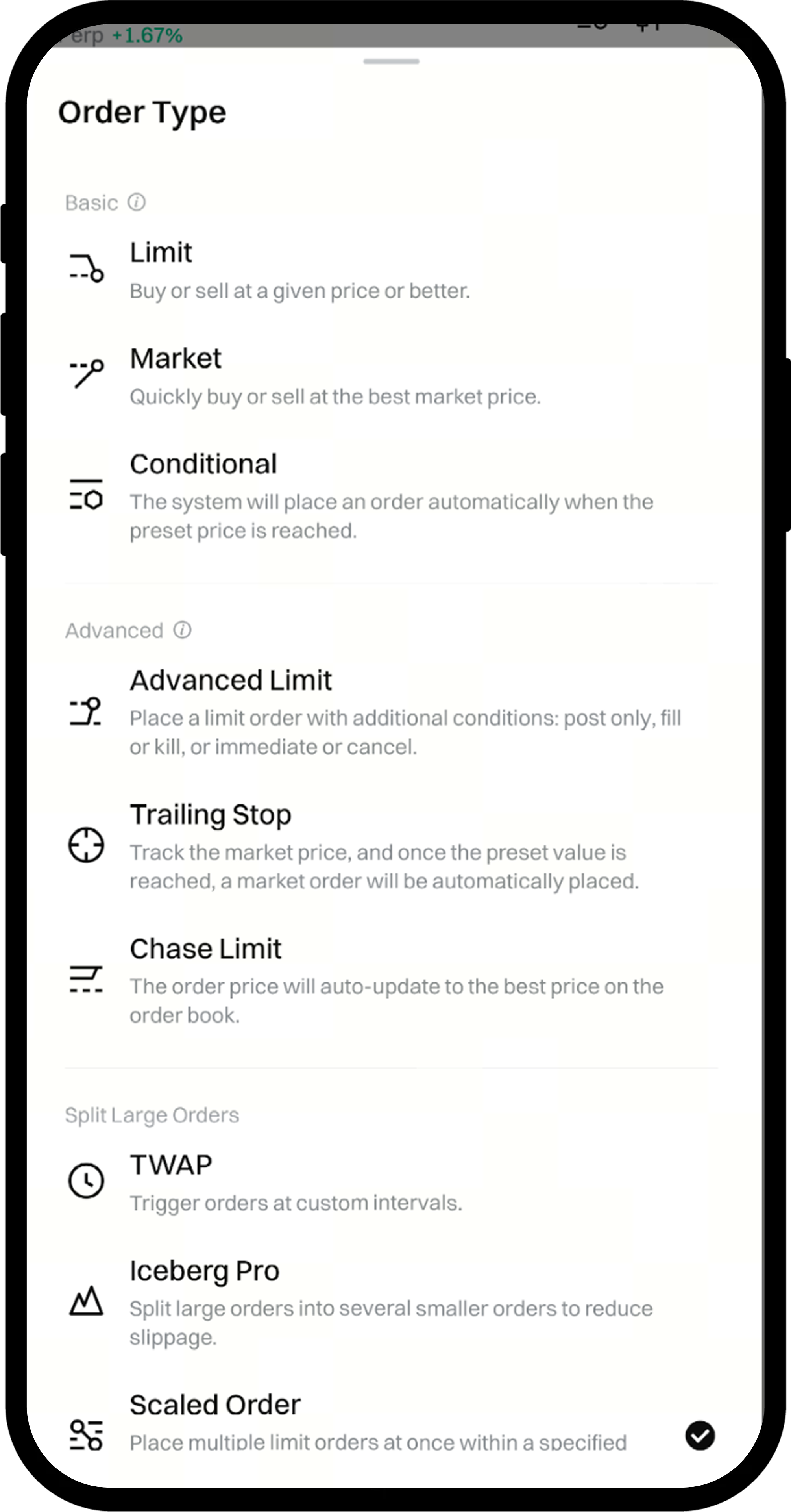
On the trading page, select the trading pair you wish to place an order for, then expand more order types in the order area and select Segmented Order.
Step 2: Set Order Parameters
Create your segmented order using the following parameters:
| Parameter Name | Description |
|---|---|
| Position Mode | Consistent with the selected contract's position mode preference. |
| Minimum Price | Lower bound of the price range for segmented sub-orders. |
| Maximum Price | Upper bound of the price range for segmented sub-orders. |
| Number of Orders | Total number of sub-orders split when executing segmented order, range is 2-10. |
| Total Quantity | Enter the total quantity to submit for the order. |
| Quantity Distribution | Distribution method for splitting quantity: average, increasing, or decreasing. Default is average. |
| Average: Distribute total quantity evenly across orders, placing at average price intervals. | |
| Increasing: Distribute quantity incrementally across orders, placing at average price intervals. | |
| Decreasing: Distribute quantity decrementally across orders, placing at average price intervals. | |
| Reduce Only | Applies only to one-way mode for perpetual contract trading. In dual position mode, for closing orders, traders can switch to the "Close" tab to create segmented orders. |
Step 3: Confirm and Submit Order
Double-check all your order details, then tap Confirm to submit the order.
Step 4: View and Manage Orders
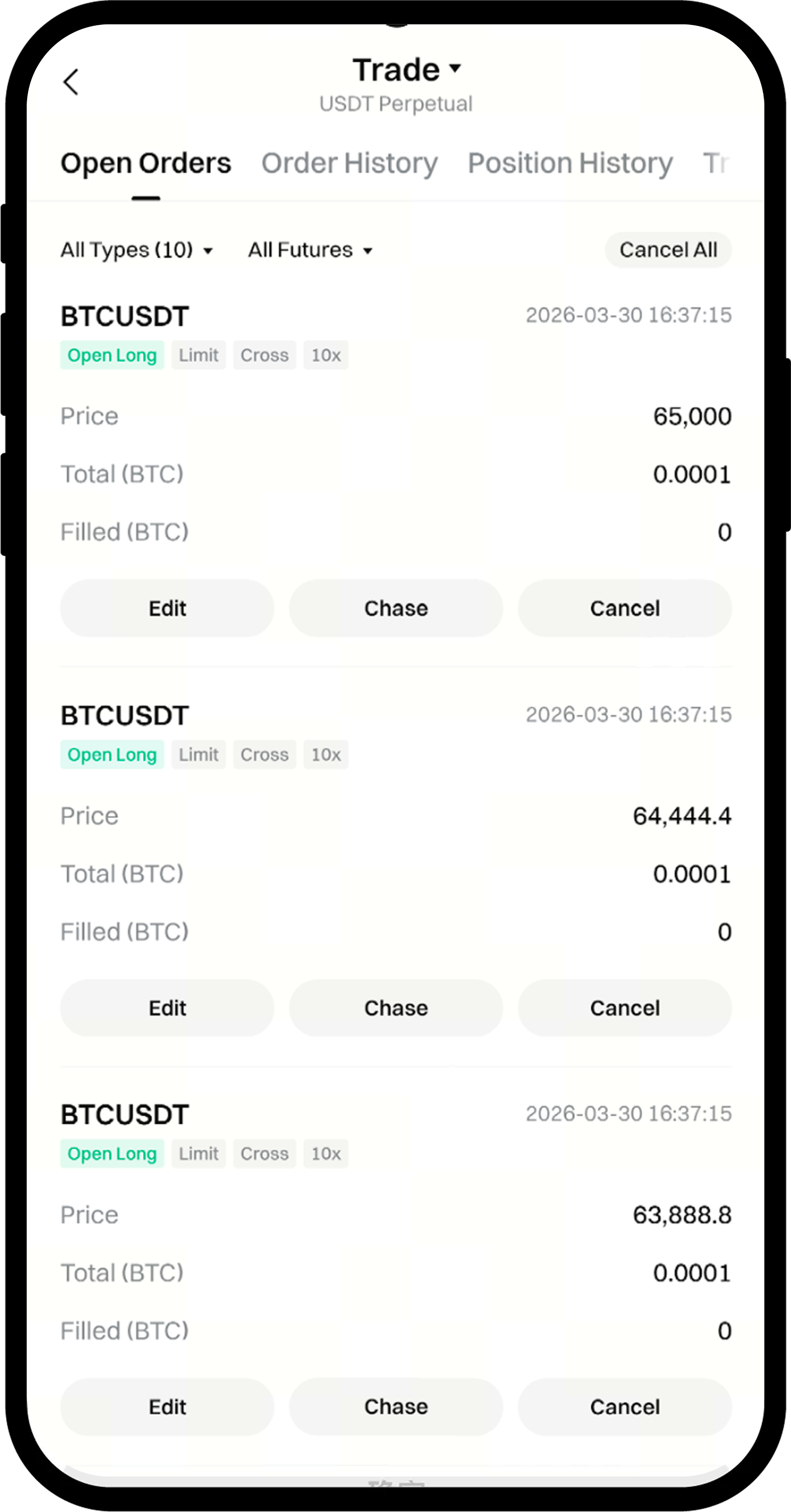
Once your order is placed, you can view segmented orders under Current Orders > Limit Orders at the bottom of the trading page.
To modify or cancel, tap the Modify or Cancel button next to the order in Current Orders.
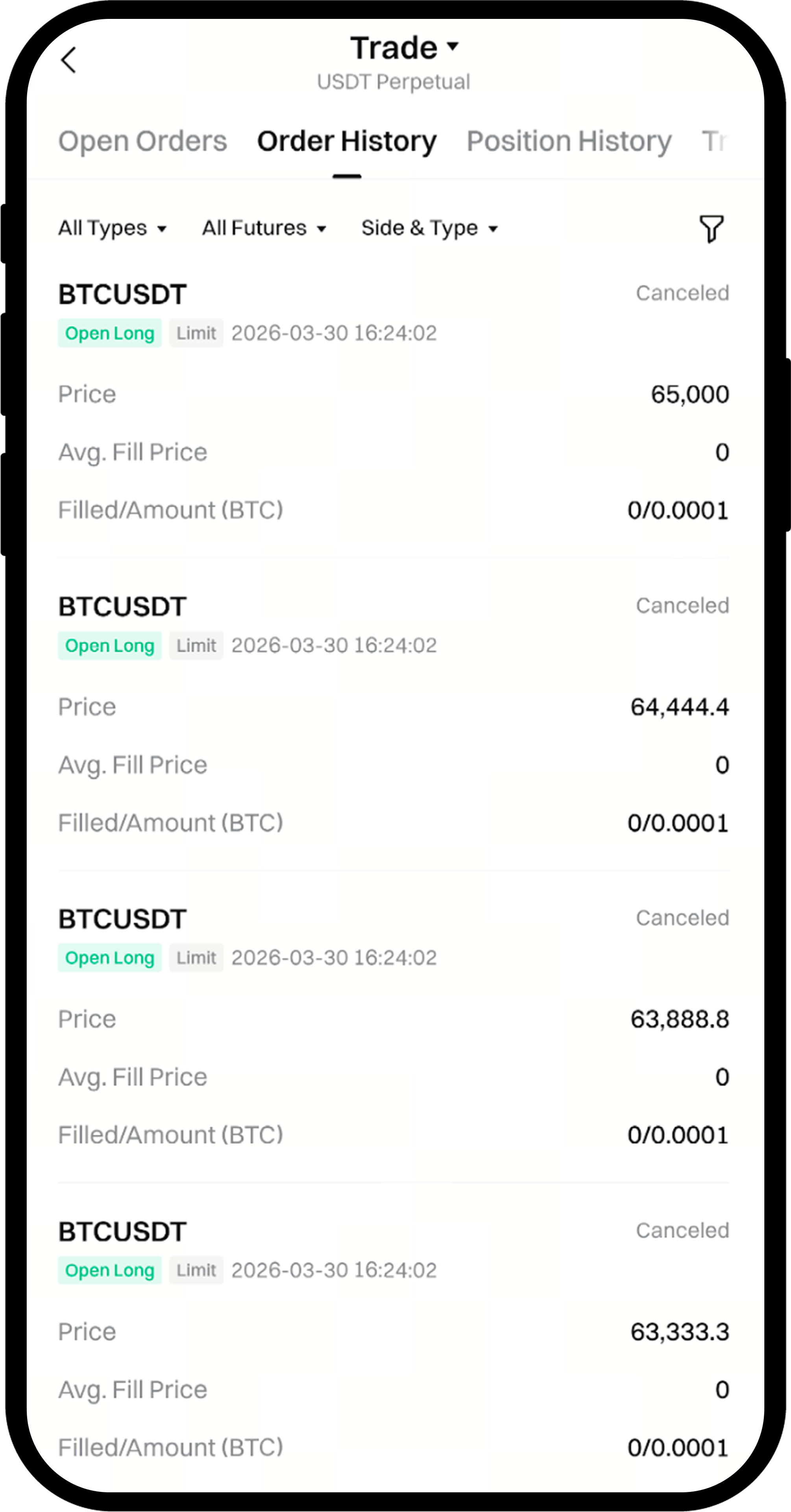
Step 5: Check Order History
Completed or cancelled segmented sub-orders will appear in Order History.
Tap the Bill icon at the far right of Current Orders at the bottom of the trading page to view your order history.
Notes
- Segmented order quantity range is 2-10 sub-orders
- If the current market price is better than the sub-order price, that sub-order will be executed immediately
- Using segmented orders in illiquid markets may result in some sub-orders not being filled
- Each sub-order can be modified or cancelled individually
Frequently Asked Questions
Q1: What’s the difference between segmented orders and regular limit orders?
A: Segmented orders automatically split a large order into multiple smaller orders placed at different price points, while a regular limit order is placed at a single price point. Segmented orders help reduce slippage and market impact.
Q2: Can segmented sub-orders be partially cancelled?
A: Yes. Each sub-order is an independent limit order. You can cancel or modify any sub-order individually in Current Orders.
Q3: How are segmented orders executed if the market price fluctuates rapidly?
A: If the market price moves quickly beyond your set price range, some sub-orders may be executed immediately, while others may not be filled. You can check the status of each sub-order in Current Orders.
Disclaimer
The content provided herein is for reference and educational purposes only and does not constitute any financial, investment, trading, or legal advice, nor does it constitute an offer or solicitation to buy or sell any digital assets. Gate makes no express or implied representations or warranties regarding the accuracy, completeness, or timeliness of the information contained herein. Product features, interfaces, rules, and fee structures may be updated or adjusted at any time. Please refer to the latest announcements and the actual information displayed on the Gate platform for the most accurate details.
Digital asset investments involve significant risk, and prices may fluctuate substantially. You may lose the entire amount of your investment. Please make decisions cautiously based on your own financial situation and risk tolerance after fully understanding the associated risks. If necessary, you are advised to consult an independent professional financial or legal advisor.
For more information about potential risks, please refer to Gate's Risk Disclosure and User Agreement.
